

What is "Viewing as a Student"?
Viewing as a student shows you a student's exact view: their dashboard, jobs, quizzes and accounts. You can do this for any student in a class you teach.
View a student's experience
In your Students tab, you can see your full class list. Open the student's profile by clicking on their name.
Click View as [Student]. This is available as a button and as a menu option on their profile, when clicking on the 3 dots.
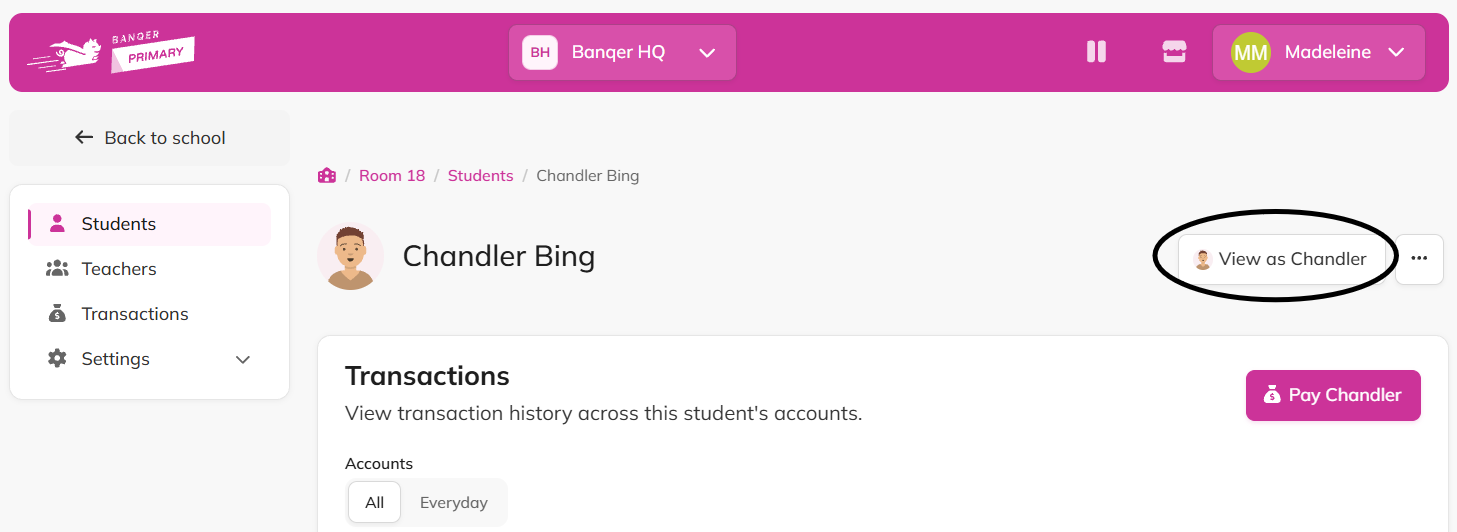
The student’s view will then be opened in a new tab: their dashboard, jobs, quizzes and bank accounts.
Exit view-as mode
A "Viewing as [Student]" banner stays at the top of the screen the whole time you're in this mode.
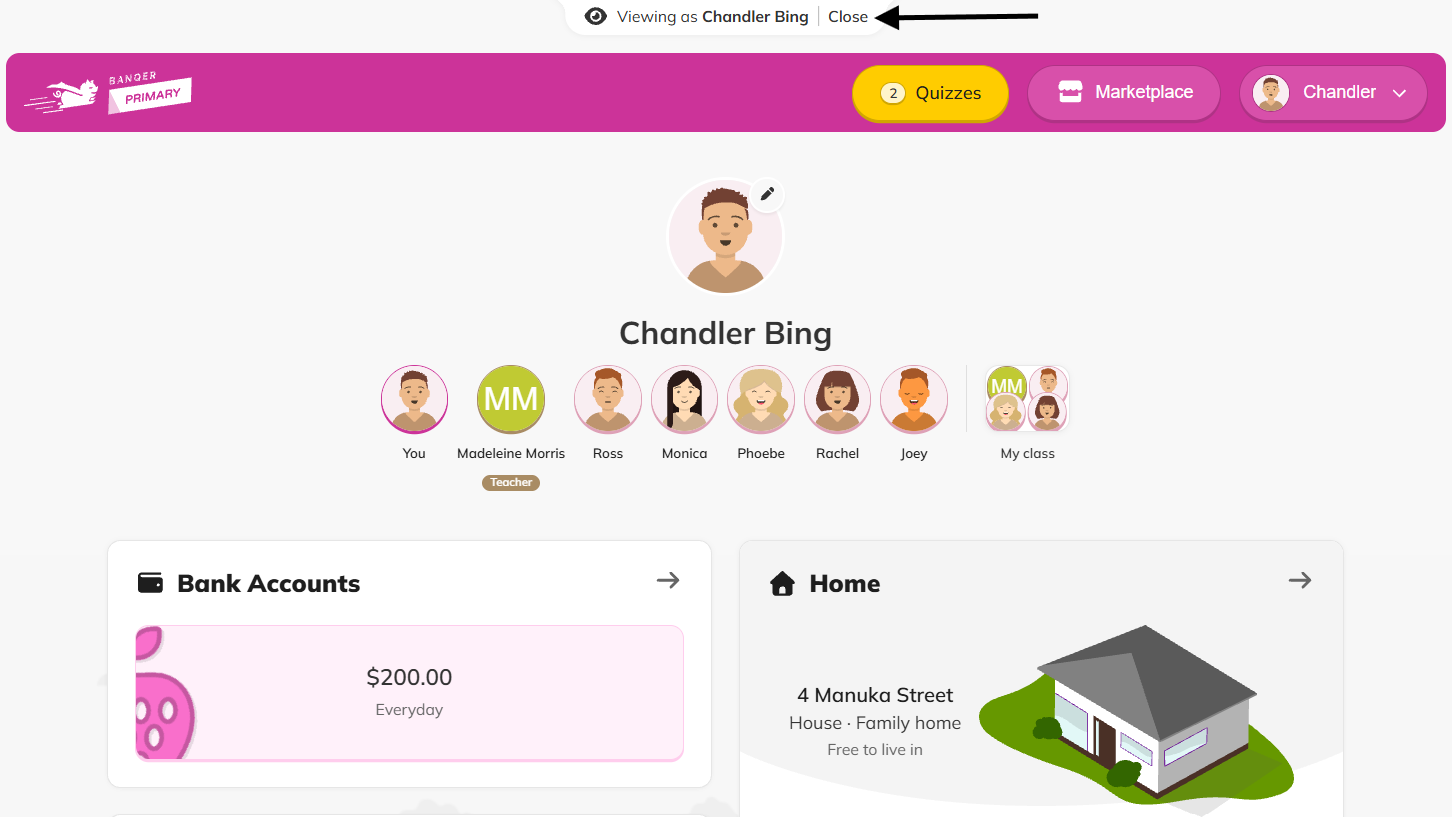
Click Close on the banner to exit.
The tab will close and you’ll be back in your Teacher Dashboard tab.
Tips
Opening a quiz shows the questions and correct answers. It does not create a real attempt. You can skip or answer, but no reward is paid out either way.
Browsing the dashboard, jobs, or accounts does not change anything.
You can view as any student in a class you teach, not just your own students specifically.
Need the student's login details instead? Use the View student login option from the 3 dot menu on the student’s profile. That's a separate option from "View as Student".