

Fast pay a student in one click
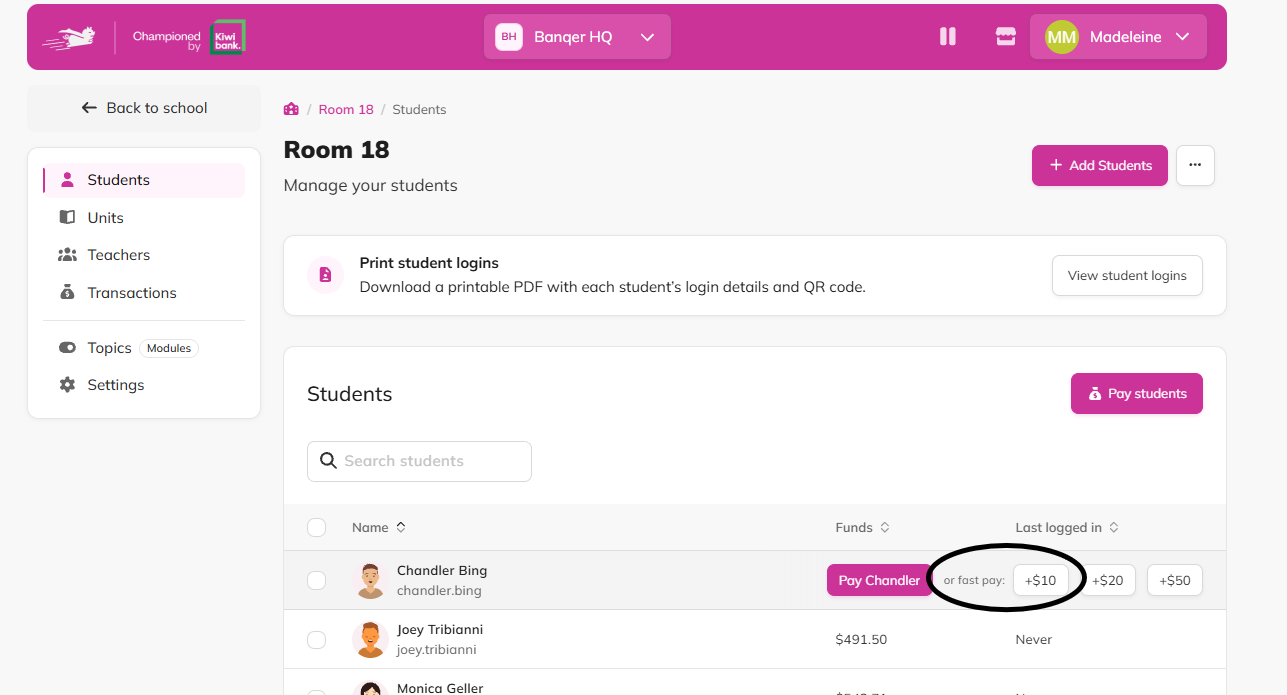
Go to Students in the sidebar.
Hover over the student's row.
Click a fast pay amount, like +$10. The money lands in their account straight away.
Credit or debit a single student
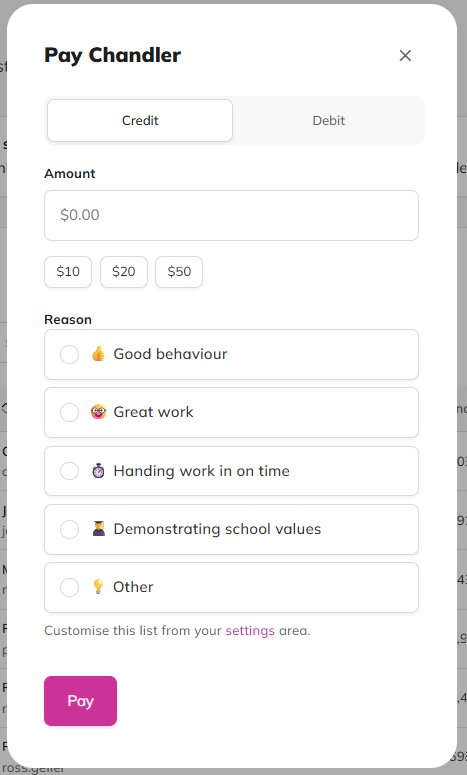
On the Students page, click Pay on the student's row.
Choose Credit to pay them, or Debit to charge them.
Pick a preset amount or type your own.
Choose a Reason, or pick Other and write your own.
Click Pay or Charge.
Credit or debit a group of students
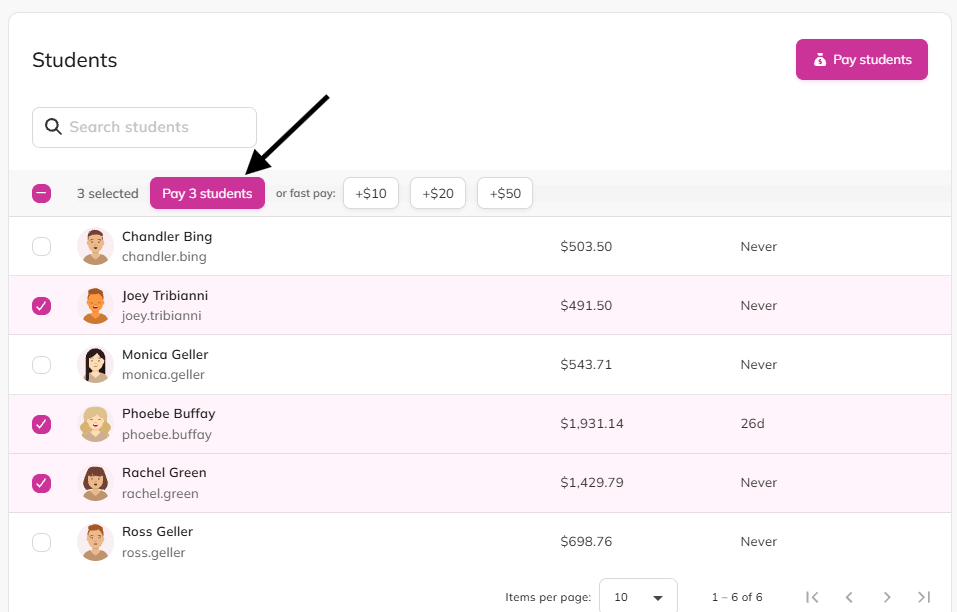
On the Students page, tick the box next to each student you want. To include everyone, tick the box at the top of the list.
Click Pay [number] students in the bar that appears.
Choose Credit or Debit, then pick an amount and a reason.
Click Pay or Charge. Every selected student gets the same amount.
You can also click the Pay students button at the top of the page, then use Select all or search to choose students, and click Next.
Flags
Class transactions cannot be reset. Use the ‘Debit a group of students’ option if payments begin before you get students online and you’d like to get everyone’s balance back to $0.
Tips
Make the reason list your own. Add your favourite rewards and charges, like "🤓 Great work" or "🏃 Running late to class", in your Banking settings (in the Topics tab).
Set your three fast pay amounts in Banking settings to match the rewards you give most often.