

What are Lesson Resources?
A unit is a set of lessons on one topic. Each lesson has three parts:
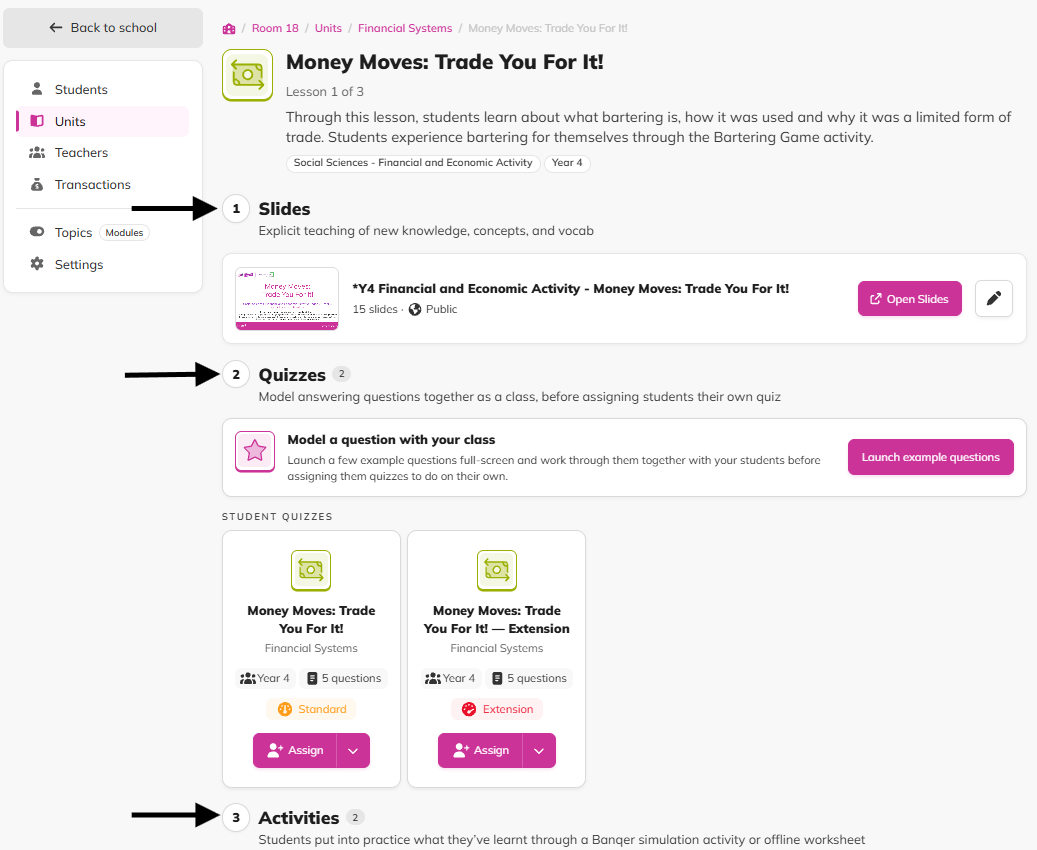
Slides for teaching new knowledge, concepts and vocabulary.
Quizzes to model with your class, then assign to students.
Activities where students put what they've learnt into practice.
Everything lives under Units in the sidebar, which has two tabs: This classroom (your units) and Library (everything you can add).
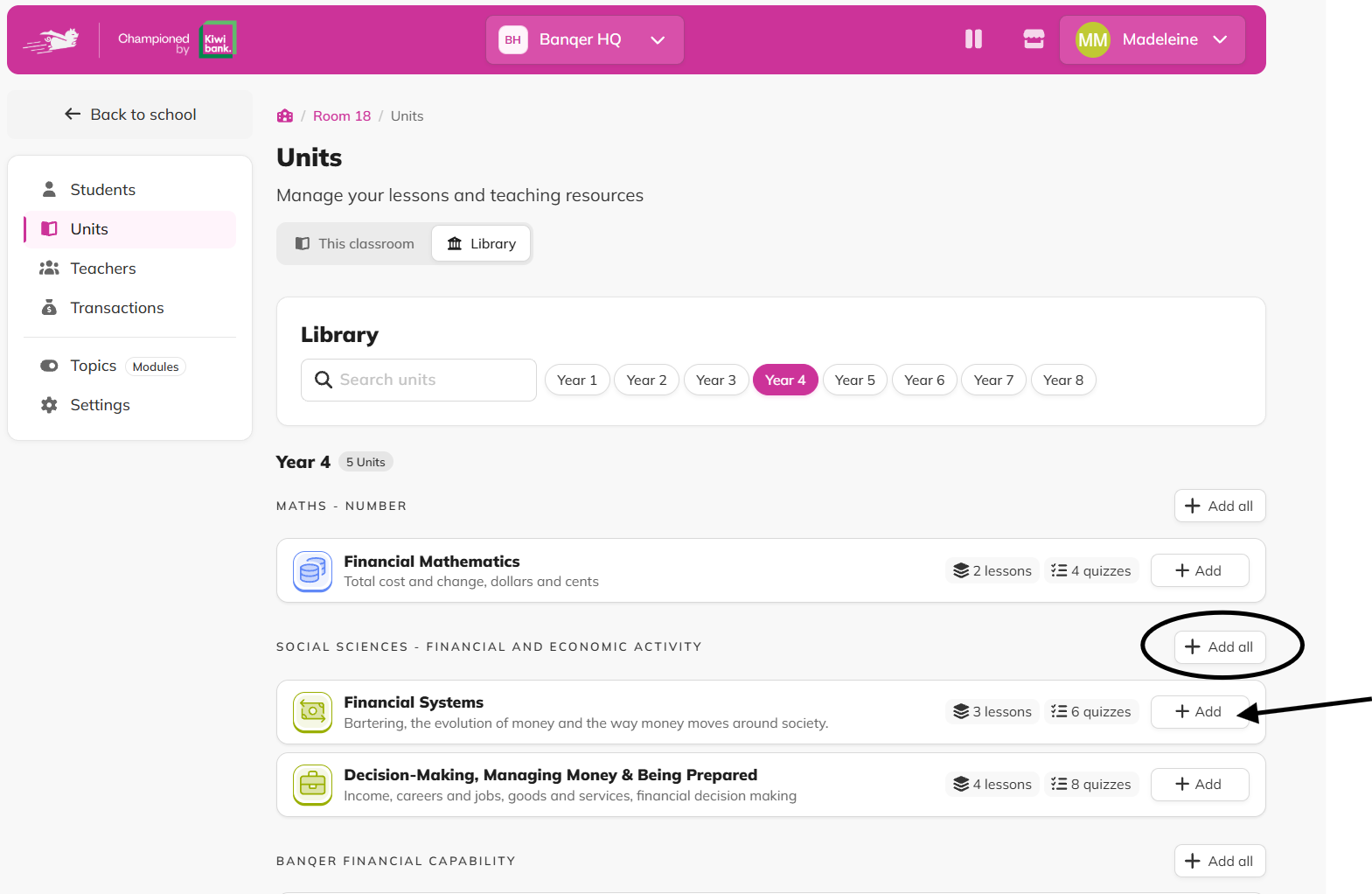
Add units from the Library
Click Units in the sidebar.
Open the Library tab. If your classroom has no units yet, you can also click the View Library button.
Search, or filter by year level, to find a unit.
Click a unit to preview the content, then click Add unit. You can also click Add on the unit's row.
To add every unit in a group at once, click Add all. Units you've added show as Added in the Library.
Organise your classroom's units
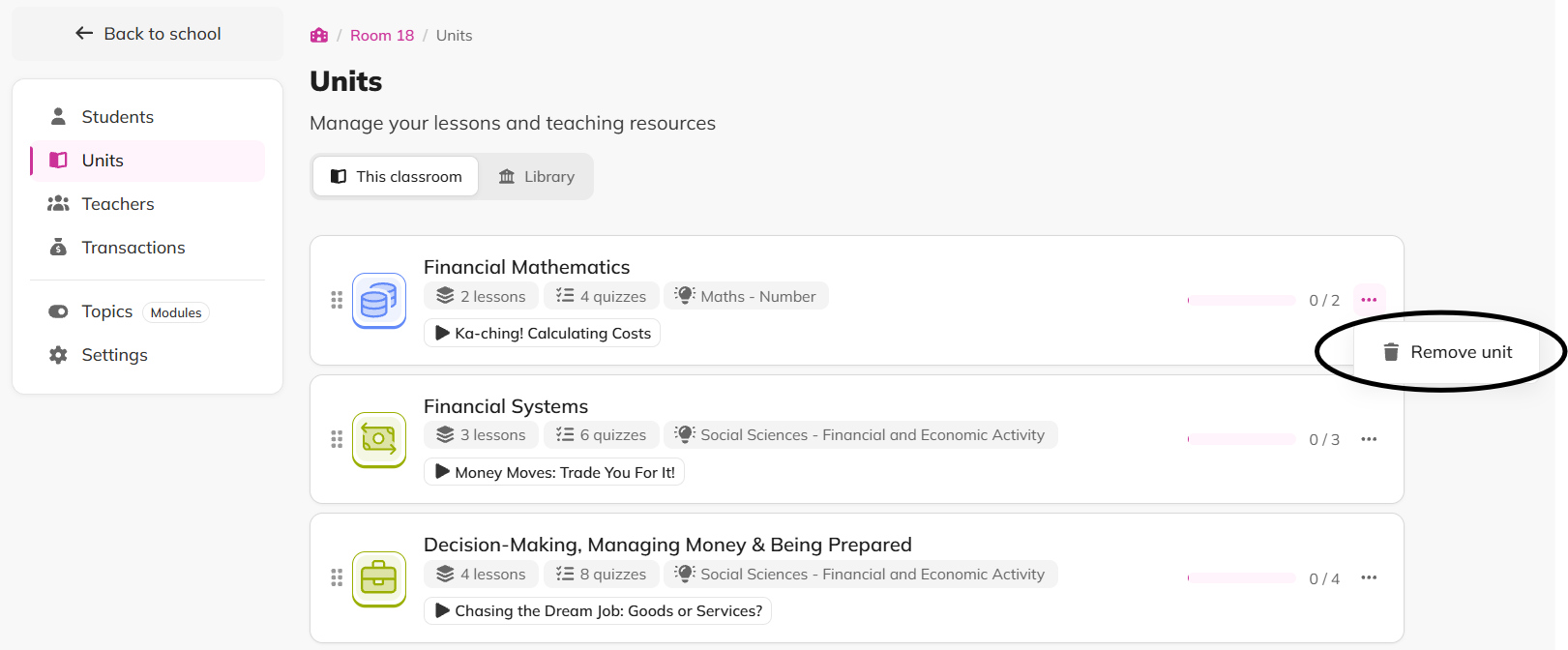
Your units appear in the This classroom tab. Each one shows how many lessons it has, its quizzes, and how many lessons you've taught so far.
To change your teaching order, use the six dots on the left of a unit to drag it up or down the list. The new order saves automatically.
To remove a unit, click the three dots on the right and choose Remove unit, then confirm.
Explore a unit
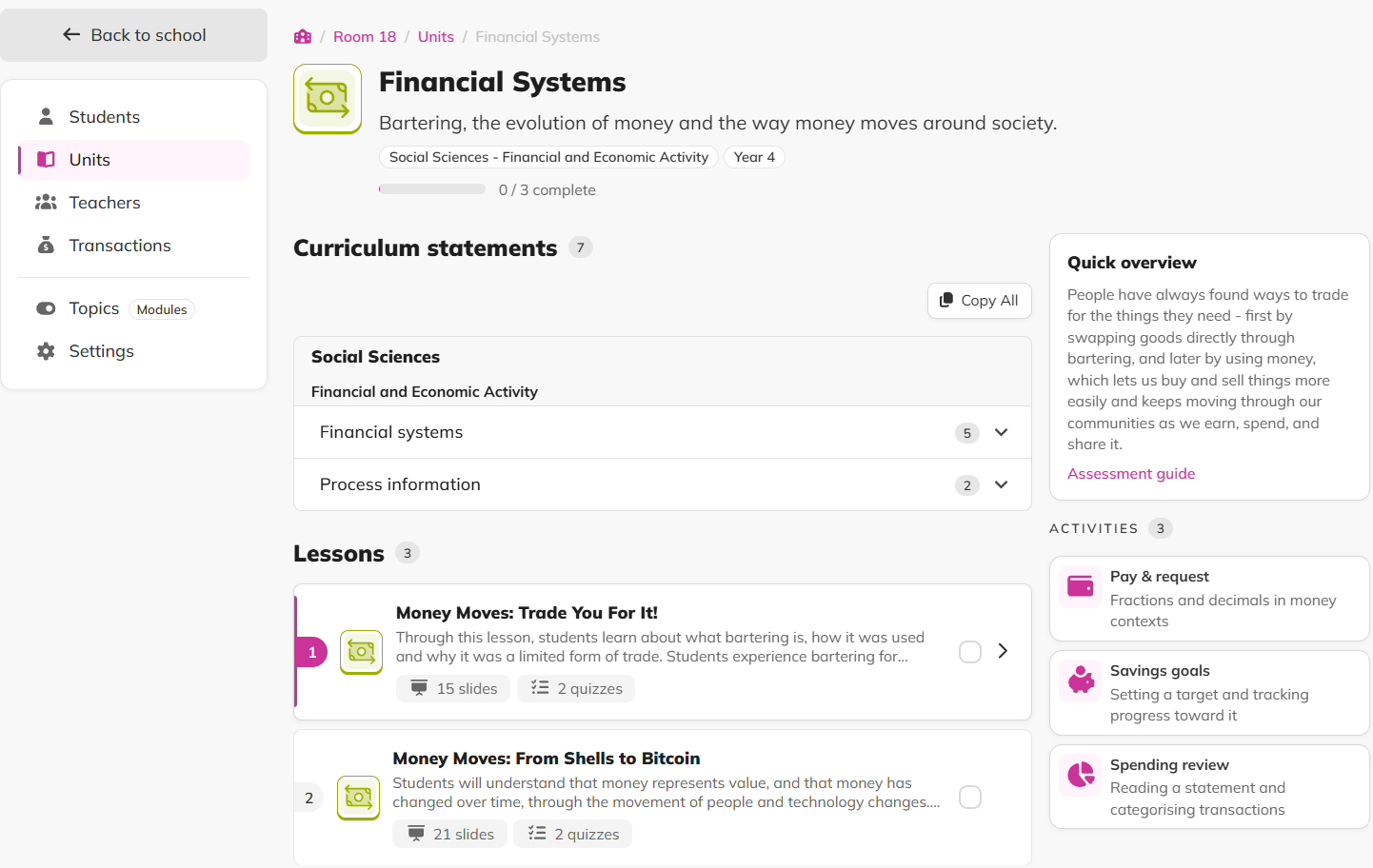
Click a unit to open its page. You'll see:
Lessons in teaching order, with your progress
Curriculum statements the unit covers (excluding Banqer units)
Any additional Quizzes not linked to a specific Lesson
A Quick overview, the Teaching time, and an Assessment guide with the success criteria
Teach a lesson
Click a lesson on the unit page to open it.
Slides: click Open Slides to present the lesson.
Quizzes: click Launch example questions to work through a few questions full-screen with your class.
Assign quizzes: on each quiz card, assign the quiz to your whole class or to chosen students. You can also preview it, see its details, or change the reward per question.
Activities: worksheets available for students to put into practice what they’ve learnt.
Use your own slides
Every lesson can link to a Google Slides deck, including your own.
On the lesson page, click the Edit link (the pencil button) on the Slides card.
Paste a Google Slides link and click Update Slides URL.
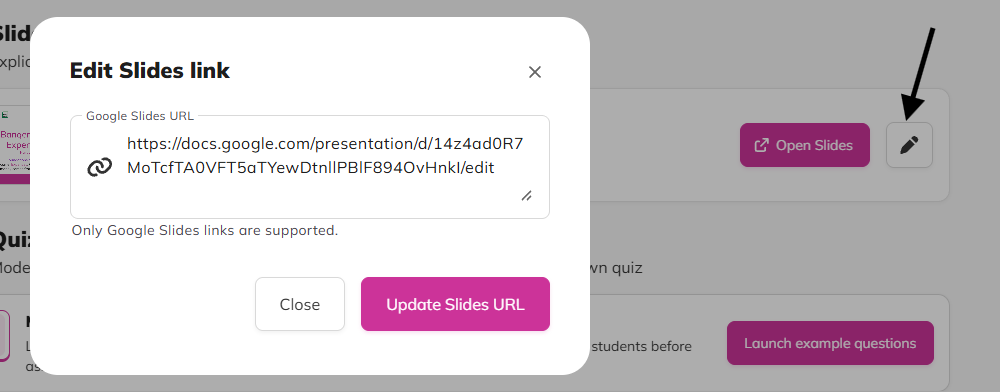
If this doesn't work: only Google Slides links are supported, and the deck must be shared publicly. If Banqer shows Link not publicly available, change the deck's sharing in Google Slides so anyone with the link can view it.
Mark lessons as taught
On the unit page, find the lesson you've taught.
Check the box on the right side of the card to mark it as taught. It then shows as Lesson complete.
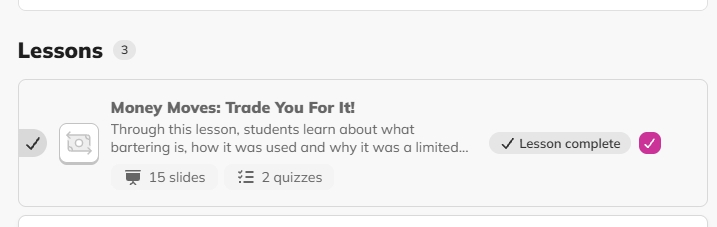
Your progress shows on the unit and in your classroom's list, for example "2 of 5 lessons taught". Once every lesson in a unit is taught, the unit shows as Complete.
Tips
Model a quiz's example questions with your class before assigning the quiz, so students know what to expect.
Quizzes are categorised Support, Standard or Extension, so you can match each quiz to your students' needs.
If you're using your own slides, check the deck is shared publicly before the lesson starts.