

What is Investing?
Students choose from a range of kid-friendly companies and funds. Each one shows today's price, a five-year chart, a short description, and its risk level. Companies also show their sector and size.
Prices move over time, just like a real market, so students get to experience years of ups and downs over a single school year. If you also use Retirement Savings, both topics share the same classroom market.
Turn on Investing
Click Topics in the sidebar and open Investing.
Click the Turn on button, then confirm.
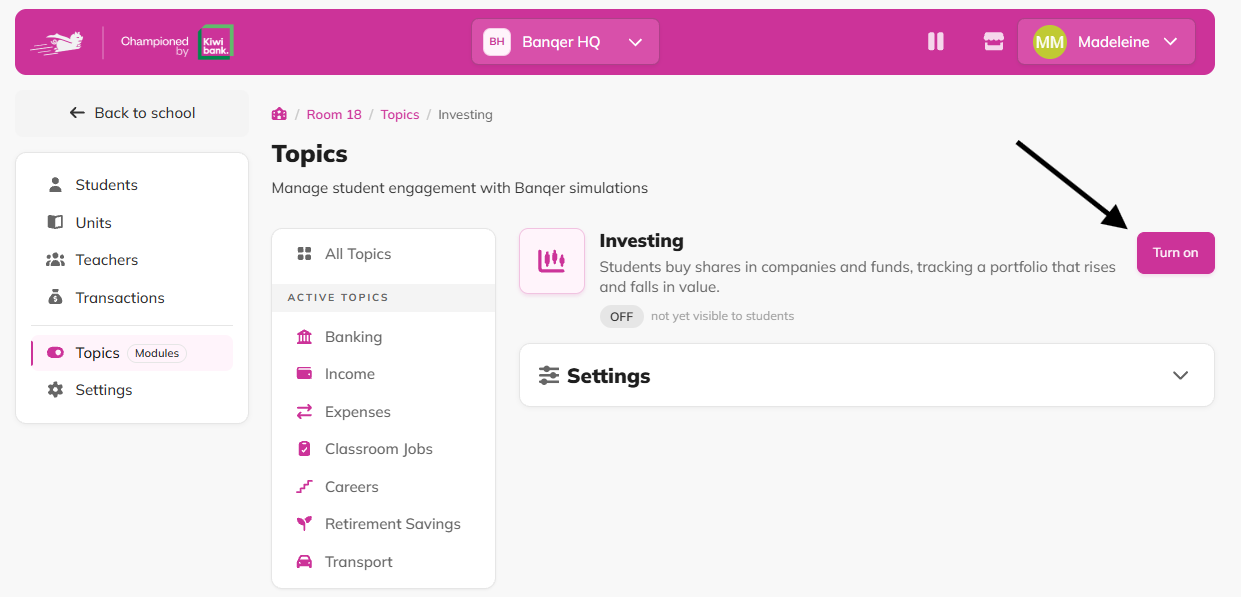
When you turn it on:
An Investments card appears on each student's home screen.
Your classroom's market opens and prices start moving.
Students trade using money from their Everyday bank account.
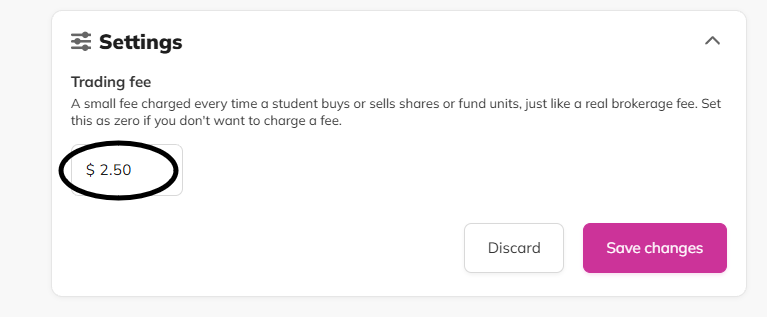
Set your trading fee
Every buy and sale includes a small trading fee, just like real share platforms. It's $2 by default.
On the Investing topic page, find Trading fee in Settings.
Enter the fee you'd like (cents are fine, e.g. $1.50). Set it to $0 for free trading.
Click Save changes.
How students buy shares
Click Explore shares on the Investments card.
Browse the investments and pick one to explore.
Choose how many shares to buy. Students can buy part-shares in tenths (e.g. 2.5 shares), so even small budgets can invest.
Click Buy and confirm. The cost plus the trading fee comes out of their Everyday account.
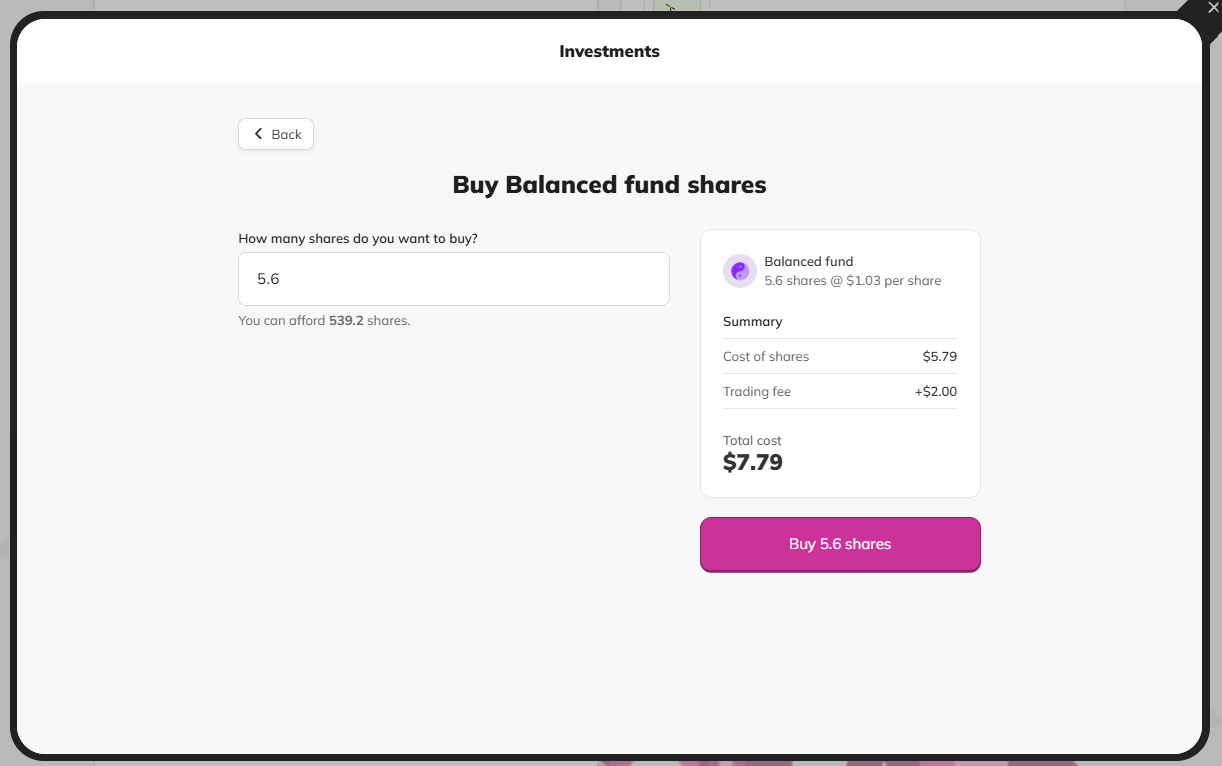
Students always buy at the price they're shown. If the price moves before they confirm, they'll see the updated price and can go again.
How students sell shares
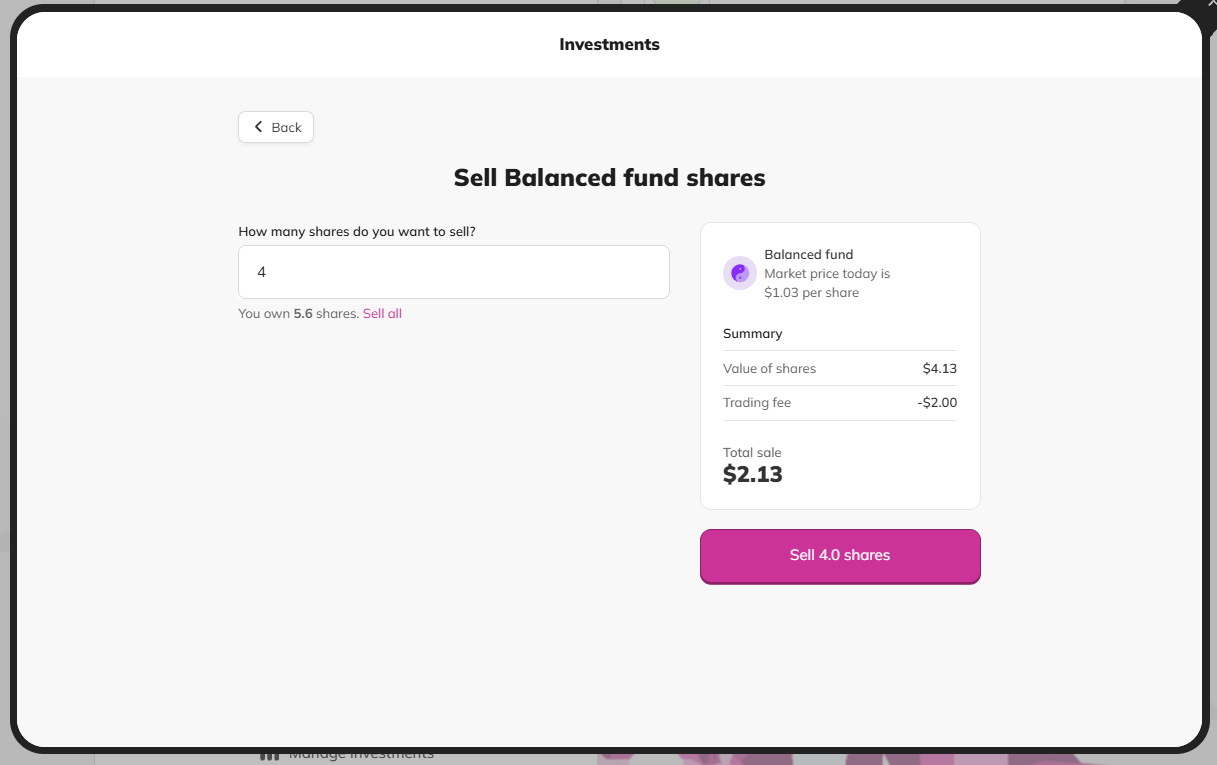
Click Manage investments on the Investments card.
Open the investment from their Portfolio.
Click Sell.
Choose how many shares to sell (some or all).and confirm. The sale value, less the trading fee, lands in their Everyday account.
See how your students are doing
The Investing topic page has a Student engagement section that shows which students have invested and what they've bought, so you can spot your keen investors and who might need a nudge. Want to help a student make their first trade? Use Viewing as a Student to buy or sell alongside them.
What students see
Portfolio: their total value, how much they've invested, and their growth
Each investment: current value and a price chart
Transactions: every buy and sale, with the price, fee and total
Flags
Prices go up and down. That's the lesson! Bigger swings on riskier investments make for great class discussions.
Fees add up. Students quickly learn that trading often costs more than holding for the long run.
Tips
Run a class "share market day" where students research a company before buying.
Compare students who held steady with those who traded often. Who came out ahead?
Try a funds vs companies challenge to show how spreading money around changes risk.
Pair it with Classroom Jobs so students have regular income to invest.