

What is Classroom Jobs?
Classroom Jobs connects contribution to income. Students do a job in the room, and they're paid for it every class pay day, on top of anything else they earn. Wages are paid and tax is taken out automatically, so students see the difference between what a job pays and what they actually take home.
Your classroom starts with 14 ready-made jobs, each with its own weekly pay and number of spots. You can edit, hide, delete or add jobs to suit your class.
Turn on Classroom Jobs
Click Topics in the sidebar.
Open Classroom Jobs.
Click Turn on, then confirm.
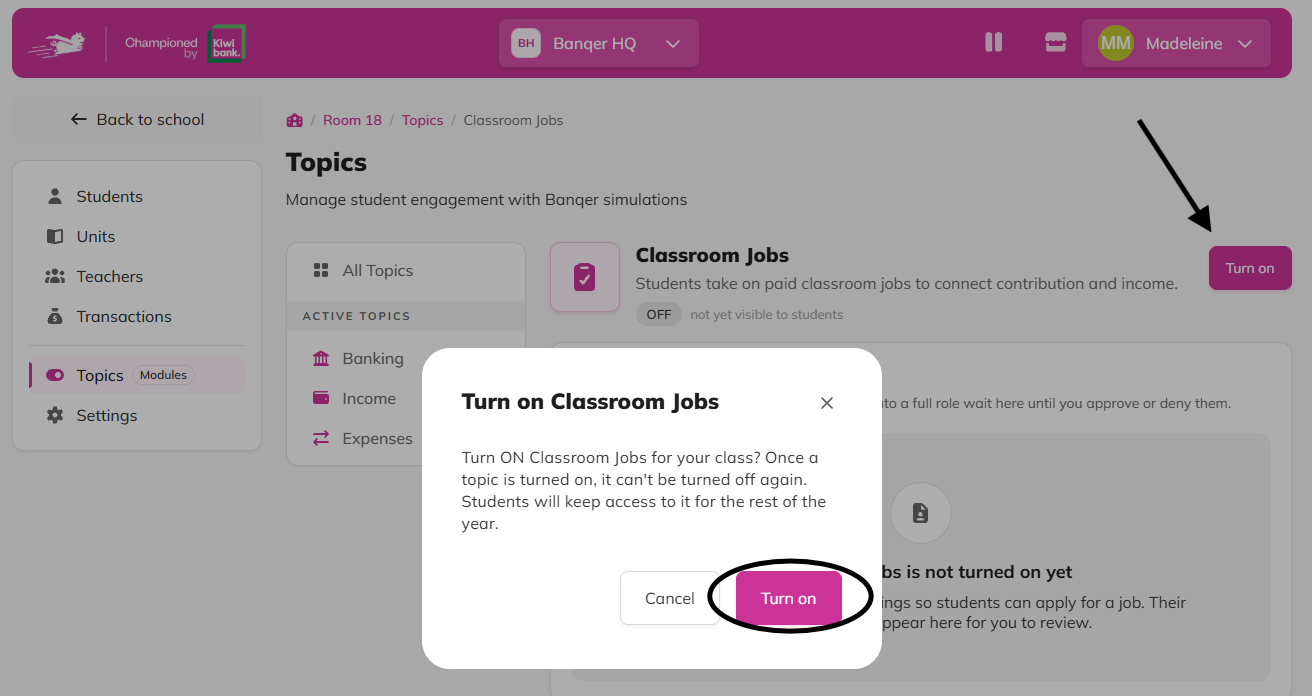
Once it's on, students can see the Jobs tab in their Marketplace.
Set up your job listings
The Job listings section on the Classroom Jobs page shows every job in your classroom.
To change a default job, click edit and update the name, description, weekly pay or number of spots. Click Save changes.
To add your own job, click Add job, fill in the details, and save.
To hide a job from students without deleting it, switch it off. To hide several at once, tick them and click Turn off.
To remove a job completely, click edit and then delete. To delete several at once, tick them and click Delete.
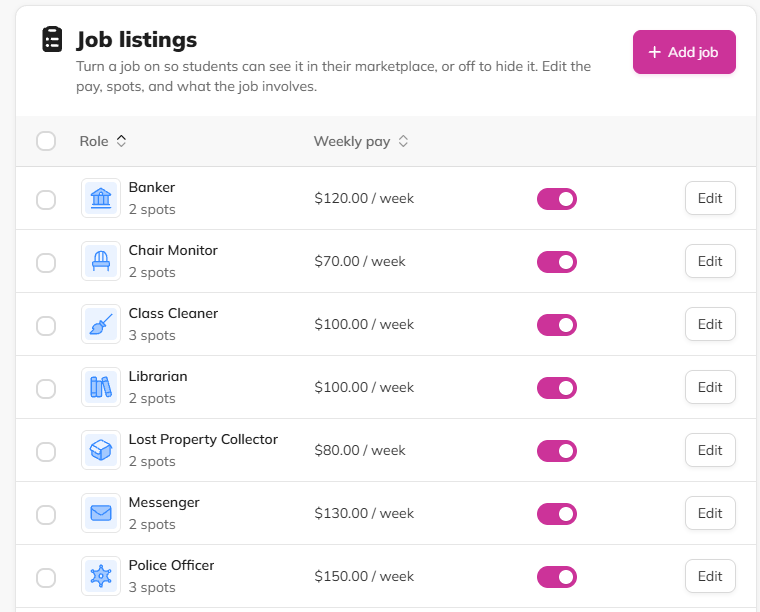
Hiding a job doesn't affect students who already have it. They keep the job and keep getting paid.
Choose your settings
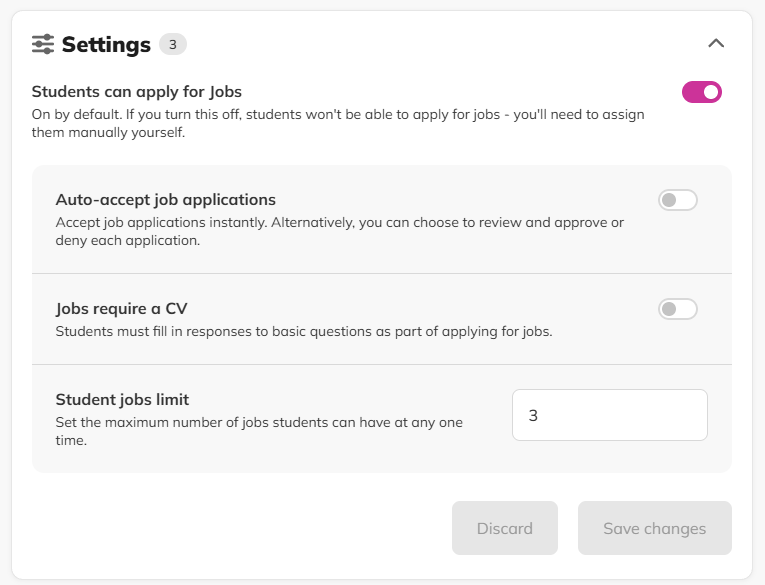
Open the Settings section at the bottom of the Classroom Jobs page.
Students can apply for Jobs (on by default). Turn this off if you'd rather assign every job yourself.
Auto-accept job applications (off by default). Leave it off to review each application, or turn it on to accept applications straight away.
Jobs require a CV (off by default). When it's on, students answer a few short questions ("Why you?" and "What have you done before?") and choose their year level when they apply.
Student jobs limit (3 by default). The most jobs a student can hold at once, from 1 to 14.
How students apply
The student opens the Marketplace and goes to the Jobs tab.
They click a job to see what it involves, what it pays and how many spots are taken.
They apply, filling in their CV if you've asked for one.
Their application shows as ‘Pending approval’ until you decide.
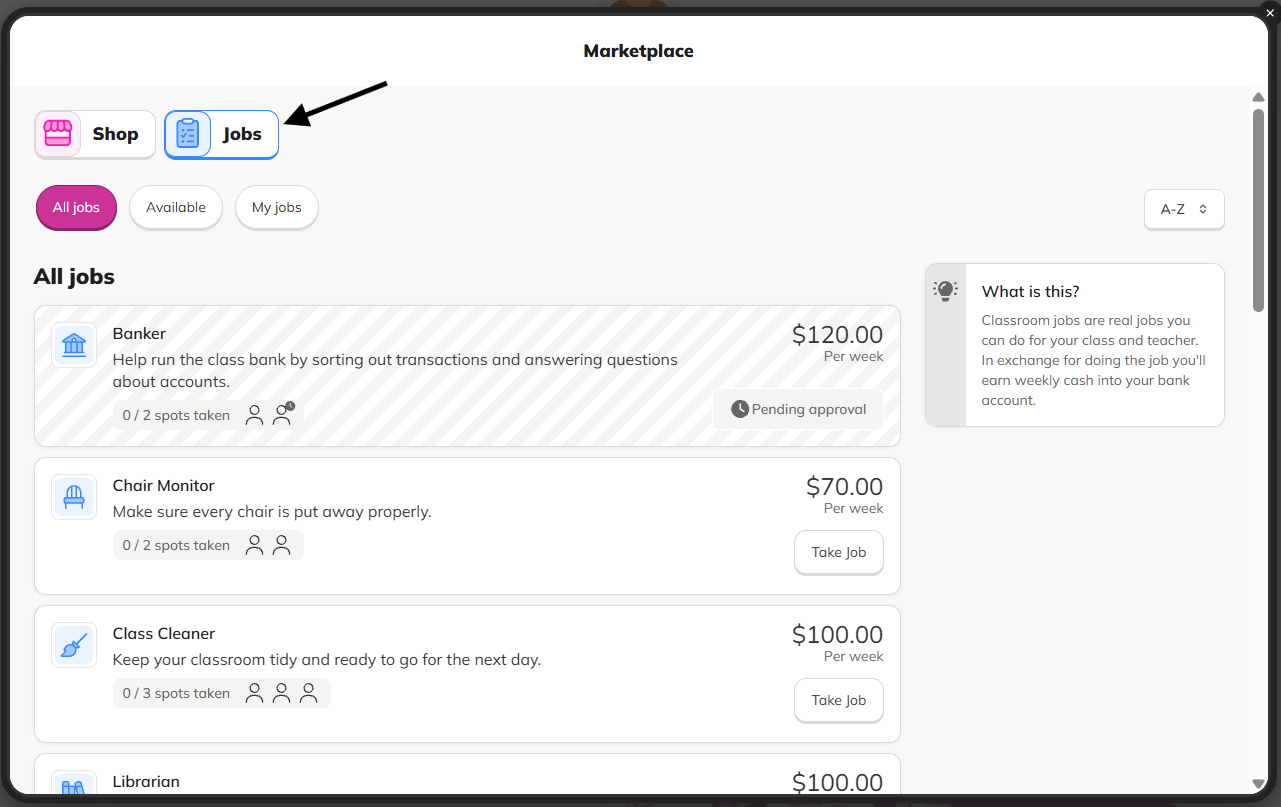
Students can cancel a pending application themselves. Students can still apply for a job that's already full. Their application waits in your queue until a spot opens up.
Review applications
New applications appear in Job applications at the top of the Classroom Jobs page, with a pink count showing how many are waiting.
Select a student.
Click Show CV to see a student's answers (if you’ve required it).
Click Approve or Deny. You can also tick several applications and approve or deny them in bulk.
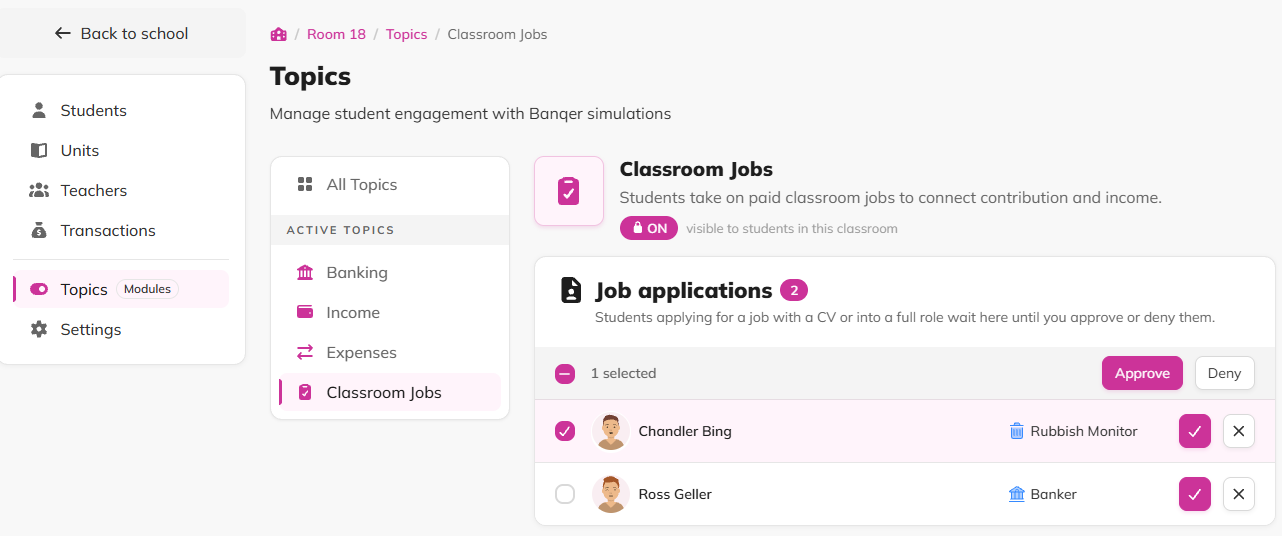
An application can't be approved if the job has no spots left. Add more spots to the job, or remove another student from it first.
If you approve more students than a job has spots, Banqer fills the spots in the order the students applied. The rest stay pending.
Assign or remove students from jobs
The Student jobs section lists every student and the jobs they currently hold.
Find the student.
Click the Assign button and choose a job. They don't need to have applied.
To take a student off a job, click the Manage jobs button to remove it from their list.
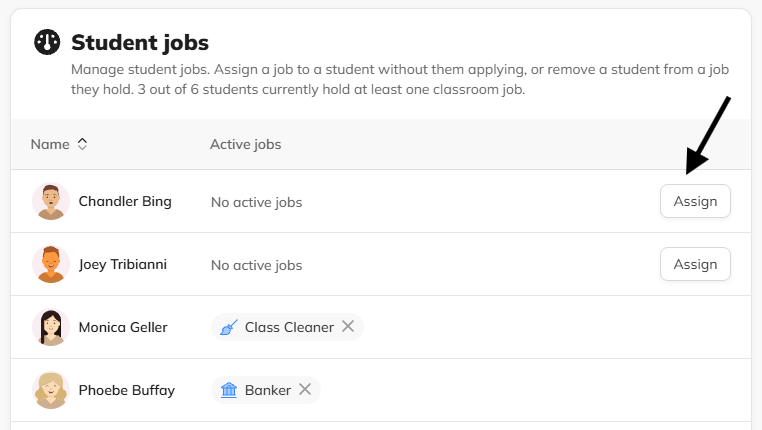
If the job is already full, Banqer asks whether you want to assign it anyway. This gives the student the job without adding a spot to it.
How pay works
Every job pays a set weekly amount, on the same pay day as the rest of your class’ income.
Tax is taken out automatically. Students can see it in My payslips, which shows each job's pay, the tax and their take home pay.
A student who starts or leaves a job partway through a week is paid only for the days they held it.
Flags
Classroom Jobs can't be turned off once it's on. To pause things, turn off the ‘Students can apply for Jobs’ setting, hide individual jobs, or take students off their jobs.
Deleting a job can't be undone. If students hold it, deleting it takes them off the job and pays them for the days they've worked that week. To hide a job instead, switch it off.
Tips
Keep the ‘Auto-accept’ setting off at first, so you can talk with students about why they'd be good for a job. Turn it on later once jobs are running smoothly.
Rotating jobs every few weeks gives more students a turn.